Latest Version
September 08, 2026
Splashtop
Tools
Android
1
Free
com.splashtop.streamer.csrs.enterprise
Report a Problem
More About Splashtop Streamer for On-Prem – Remote Android Access
What is Splashtop Streamer for On-Prem?
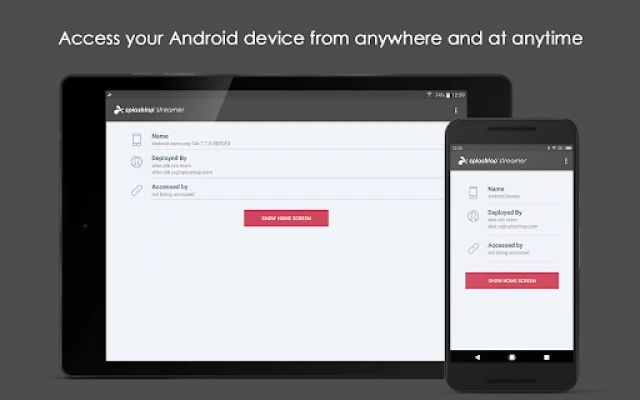
Splashtop Streamer for On-Prem is a lightweight Android client that enables remote viewing and control of an Android device within a private, on‑premises network. It is designed for organizations that need secure, internal remote‑access capabilities without relying on public cloud services.
Main capabilities
- Full device control – Once connected, you can navigate the Android interface, launch apps, and interact with on‑screen elements as if you were holding the device.
- Secure on‑premises connection – Communication occurs only within the network defined by your Splashtop On‑Prem deployment, keeping traffic inside your firewall.
- Compatibility with accessibility service – On modern Android versions (typically Android 8 and later), the app can use the accessibility service to provide smooth remote control.
- Support for managed devices – Works well with mobile device management (MDM) solutions, allowing IT teams to assist users without physical access.
How it works
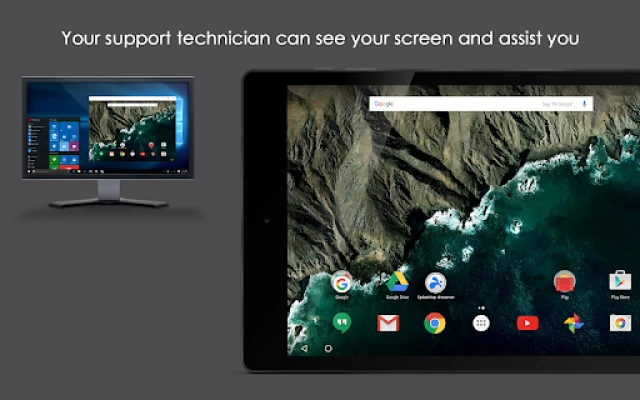
After installing the app on the target Android device, you enter a deployment code supplied by your Splashtop On‑Prem administrator. The app then registers the device with the on‑premises server. From a remote console (desktop or another mobile device), an authorized user can select the registered Android device and start a remote session. All screen data is streamed in real time, and input commands are sent back to the device.
Practical uses
- IT helpdesk support – Technicians can troubleshoot app issues, configure settings, or demonstrate procedures without traveling to the user’s desk.
- Managed service providers (MSPs) – Service contracts that include remote device management can be fulfilled securely through the on‑premises gateway.
- Enterprise device fleets – Organizations with large numbers of Android tablets or rugged devices can centralize support and reduce downtime.
Installation steps
- Download the Splashtop Streamer for On‑Prem APK from your organization’s approved source.
- Install the app on the Android device you wish to manage.
- Open the app and enter the deployment code provided by your Splashtop administrator.
- Enable the required accessibility service when prompted (available on Android 8+).
- Confirm the device appears in the remote console and begin a session.
Compatibility and requirements
The client runs on Android devices that support the accessibility service, which generally means Android 8.0 (Oreo) and newer. Devices must be able to connect to the internal network where the Splashtop On‑Prem server resides. No specific hardware features are required beyond a functional screen and touch input.
Things to consider before installing
- Network access – The device must stay connected to the corporate network (Wi‑Fi or wired) for remote sessions to be possible.
- Permissions – The app requests permission to capture the screen and to use the accessibility service; these are necessary for remote control.
- Licensing – While the streamer app itself is free, a valid Splashtop On‑Prem subscription is required for the server side.
Who will benefit?
IT administrators, helpdesk agents, managed service providers, and any organization that manages Android devices internally will find this tool valuable. It is especially useful where data privacy policies prohibit cloud‑based remote‑access solutions.
Frequently asked questions
Do I need an internet connection?
No. The remote session works over the local network defined by your On‑Prem deployment. An internet connection is only required if you are accessing the network remotely through a VPN or similar tunnel.
Can I control rugged devices like Zebra or Honeywell?
Control is possible, but a separate commercial license may be required for certain rugged hardware models.
Is the app compatible with Android 5.0?
The accessibility‑based control method requires Android 8.0 or later. Older versions may not support full remote control.
What happens if the device loses network connectivity?
The remote session will end automatically. Re‑establish the network connection and start a new session when the device is reachable again.
Rate the App
User Reviews


Popular Apps









 Games
Games Entertainment
 Communication
 E-mail
 Security
 Tools
Tools Media
Media Internet
 Finance
 Design
 Education
 IT Tools
 Travel & Local
 Android
 Windows
 Linux
Linux