Latest Version
Latest
August 29, 2026
Breadworks
Tools
Android
106
Free
com.wheat.remotepc
Report a Problem
More About RemotePC for Windows – Local Wi‑Fi Remote Control
What is RemotePC for Windows?
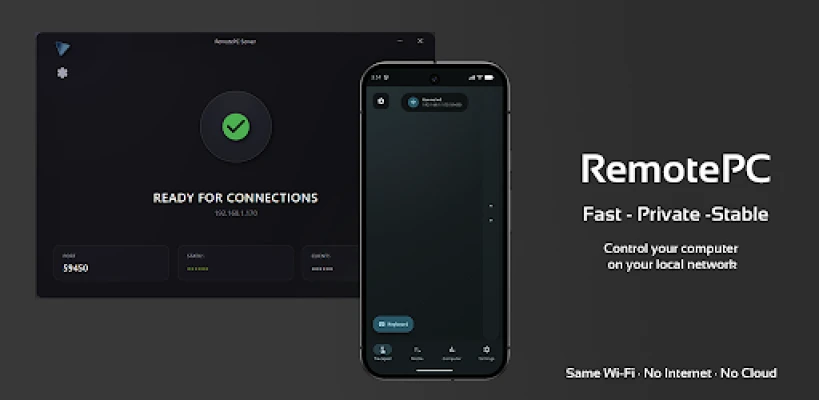
RemotePC for Windows is a free Android utility that lets you operate a Windows computer from your phone when both devices share a local Wi‑Fi network. It works entirely on your private network, so no internet connection, cloud servers, or user accounts are required.
Main features
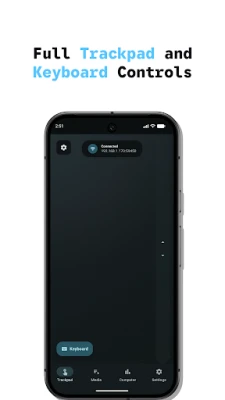
- Trackpad and keyboard – Use the phone screen as a touch‑enabled trackpad and a full‑size keyboard to navigate Windows applications.
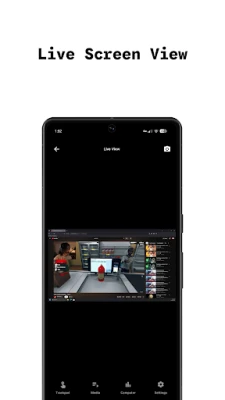
- Live screen view – See the PC’s display in real time, making it easy to monitor progress or troubleshoot issues.
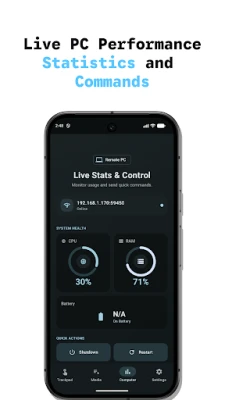
- System statistics – View CPU, RAM and battery information from the PC directly on your phone.
- File transfer – Send files between the Android device and the Windows PC over the local network.
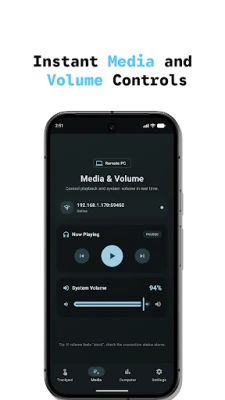
- Audio and media controls – Adjust volume and control playback of music or video without switching devices.
- System actions – Shut down, restart, lock or log out of the PC remotely.
- Dark (AMOLED) theme – A battery‑friendly dark interface for devices with OLED screens.
How it works
The app requires a companion program installed on the Windows computer. Once both the phone and the PC are connected to the same Wi‑Fi network, the Android app discovers the PC automatically. After pairing, the phone becomes a remote input device, sending touch gestures, keystrokes and commands over the local network to the PC.
Practical uses
- Presentations – Advance slides from the audience area without a clicker.
- Media rooms – Control music or video playback from a couch or bed.
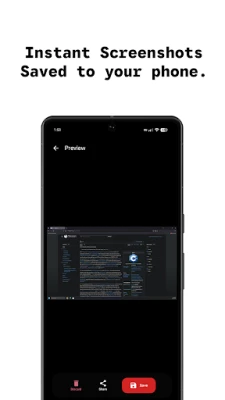
- Quick troubleshooting – View the PC screen and take screenshots while away from the desk.
- File sharing – Move documents, photos or scripts between devices without USB cables.
- System monitoring – Keep an eye on resource usage during long renders or downloads.
Installation information
Download RemotePC for Windows from the Google Play Store, install the app, and then follow the on‑screen instructions to install the matching Windows companion program. Both installations are free. After the initial setup, the app remembers the PC, so subsequent connections are one‑tap.
Things to know before installing
- The PC must be running the companion Windows application; the Android app alone cannot establish a connection.
- Both devices need to stay on the same Wi‑Fi network; switching networks will break the connection until both are on the same subnet again.
- No internet access is required after the initial download, which makes the solution suitable for private or restricted networks.
Who may find it useful?
Anyone who keeps a Windows PC nearby and wants a quick, secure way to control it from a mobile device – students, home office users, media enthusiasts, and IT support staff can all benefit from the local‑only approach.
Frequently asked questions
Do I need an online account?
No. RemotePC for Windows works entirely on your local network and does not require any sign‑in or cloud service.
Is my data transmitted over the internet?
All communication stays within your Wi‑Fi network. No data is sent to external servers.
Can I use it over a mobile hotspot?
Yes, as long as the phone and the Windows PC are connected to the same hotspot network.
What Android versions are supported?
The app runs on standard Android releases that support Wi‑Fi networking; specific minimum version details are provided in the Play Store listing.
Rate the App
User Reviews



Popular Apps










 Games
 Entertainment
 Communication
 E-mail
 Security
 Tools
 Media
 Internet
 Finance
 Design
 Education
 Android Firmwares
 Travel & Local
 Android
 Windows
 Linux