Latest Version
Latest
September 01, 2026
Remote Mouse
Tools
Android
4
Free
com.hungrybolo.remotemouseandroid
Report a Problem
More About Remote Mouse – Turn Your Android Device into a PC Controller
What is Remote Mouse?
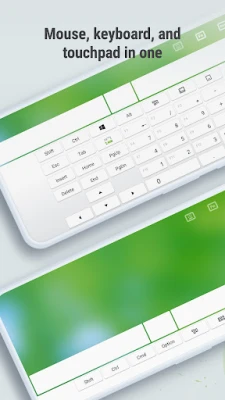
Remote Mouse is a free Android application that lets you control a computer from your mobile device. By connecting the phone or tablet to a PC or Mac over the same Wi‑Fi network (or via Bluetooth where supported), the app turns the handheld screen into a functional mouse, keyboard and touchpad.
Main features
- Mouse control – Move the cursor, click, double‑click and scroll just as you would with a physical mouse.
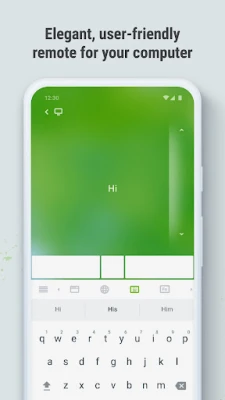
- Keyboard input – Type on the computer using the on‑screen keyboard, with support for multiple languages.
- Touchpad mode – Use gestures such as two‑finger scrolling and pinch‑to‑zoom for a more natural navigation experience.
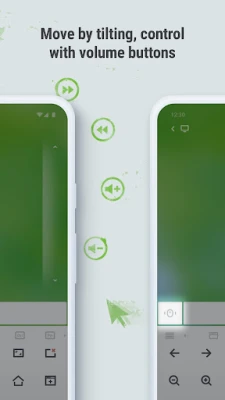
- Gyroscope assistance – Some devices allow you to steer the cursor by tilting the phone, useful when the screen is out of reach.
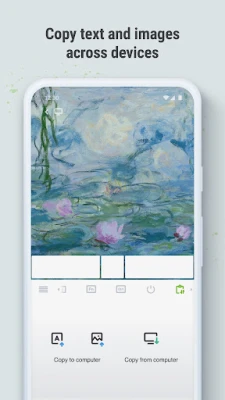
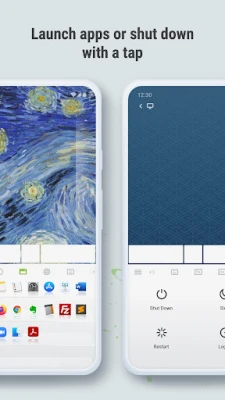
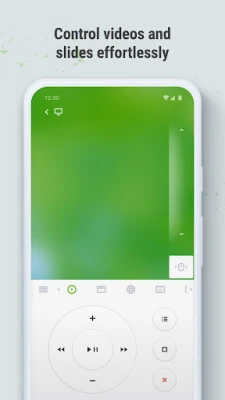
- Media shortcuts – Play, pause, skip tracks or adjust volume without leaving the remote interface.
How it works
First, install the companion desktop program on the computer you want to control. The desktop client runs in the background and creates a secure local connection. After launching the Android app, it scans the local network for the desktop client. When the two devices recognize each other, you can start using the phone as a remote input device instantly.
Practical uses
- Control presentations from the podium without a clicker.
- Navigate media players or streaming services while seated away from the computer.
- Browse the web or edit documents from a couch or bed.
- Assist with remote troubleshooting by moving the cursor and typing commands.
Installation information
1. Download Remote Mouse from the Google Play Store.
2. On the target computer, download the matching desktop client from the developer’s website and install it.
3. Ensure both devices are on the same Wi‑Fi network (or enable Bluetooth pairing if the desktop client supports it).
4. Open the app on the Android device; it will automatically detect the computer.
5. Tap the detected computer to establish the connection.
Things to know before installing
- The app requires a companion desktop program; without it the mobile side cannot function.
- A stable Wi‑Fi or Bluetooth connection is essential for responsive control.
- Some advanced gestures may depend on the hardware capabilities of the phone (e.g., gyroscope).
Who may find it useful?
Anyone who works with a desktop computer but wants the flexibility of controlling it from a distance can benefit from Remote Mouse. This includes presenters, home‑office users, media enthusiasts, and people who simply prefer a wireless solution over a traditional mouse.
Frequently asked questions
Is any special permission required?
The app needs network access to discover and communicate with the desktop client. No additional permissions are required beyond standard network usage.
Can I use it on a Mac?
Yes, the desktop client is available for both Windows and macOS, allowing the Android app to control either platform.
Is the connection secure?
The communication between the mobile app and the desktop client occurs over the local network and is not exposed to the internet. Users can set a password in the desktop client for added protection.
Rate the App
User Reviews










Popular Apps









 Games
Games Entertainment
 Communication
 E-mail
 Security
 Tools
Tools Media
Media Internet
 Finance
 Design
 Education
 IT Tools
 Travel & Local
 Android
 Windows
 Linux
Linux