
Latest Version
Latest
August 29, 2026
Monect (Suzhou) Co., Ltd.
Tools
Android
144
Free
com.monect.portable
Report a Problem
More About PC Remote – Control Your PC from Android
What is PC Remote?
PC Remote, developed by Monect (Suzhou) Co., Ltd., is a free Android application that turns a smartphone into a versatile remote for a Windows PC. By installing a companion receiver on the computer, the app lets you interact with the desktop without needing a physical mouse, keyboard, or additional hardware.
Main capabilities
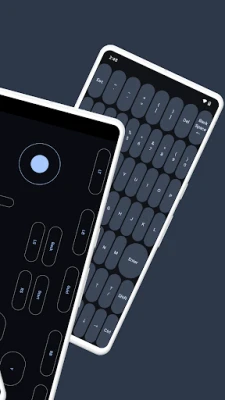
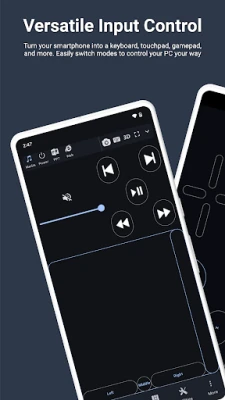
- Mouse and keyboard input – Use the touch screen to move the cursor, click, scroll and type just as you would with a traditional peripheral.
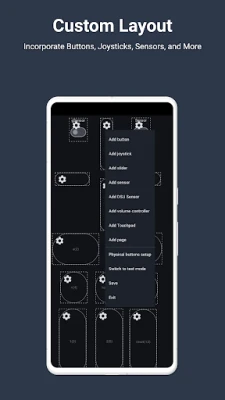
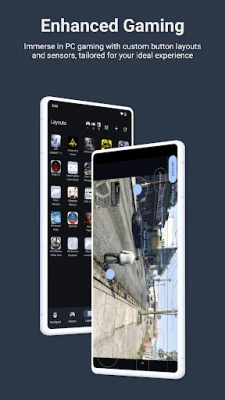
- Game controller layouts – Create custom button arrangements that map to keyboard or mouse actions, useful for games that rely on quick inputs.
- Screen and camera streaming – View the PC’s display on your phone in real time, and optionally share the phone’s camera feed back to the computer.
- Virtual webcam – Route the phone’s camera to the PC so it appears as a standard webcam in video‑call or streaming software.
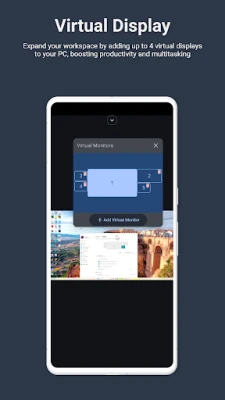
- Multi‑display support – Extend the desktop with up to four virtual screens, helping you organize windows when you are away from the main monitor.
- Graphics tablet mode – When paired with a pressure‑sensitive stylus, the phone can act as a drawing tablet for applications such as Photoshop or other design tools.
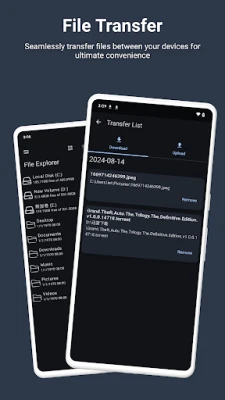
- File transfer – Drag and drop files between the phone and PC for quick sharing of documents, images or other data.
How it works
After installing PC Remote on your Android device, you download the PC Remote Receiver from Monect’s website and run it on the Windows computer. The two programs communicate over a local network, Wi‑Fi hotspot, USB tethering, or Bluetooth, giving you flexibility in how you connect. Once paired, the app presents a set of control panels that you can switch between depending on the task—mouse, keyboard, gamepad, or screen viewer.
Practical uses
- Presentations – Navigate slides from the back of the room without a clicker.
- Gaming – Use the phone as a handheld controller for PC titles that support keyboard or mouse input.
- Remote work – Access a workstation from another room, adjusting settings or launching programs without walking to the desk.
- Creative work – Sketch or annotate directly on the screen using a stylus, then save the result on the PC.
- Video calls – Replace a low‑quality webcam with the phone’s camera for clearer video during meetings.
Installation steps
- Open Google Play on your Android device and install PC Remote.
- Visit Monect’s official site on your PC, download the PC Remote Receiver, and run the installer.
- Launch the receiver on the computer; it will display a connection code or QR‑code.
- Open the PC Remote app on the phone, choose the same connection method (Wi‑Fi, Bluetooth, etc.), and enter the code or scan the QR‑code.
- After the link is established, select the desired control mode from the app’s menu.
Things to consider before installing
- The companion receiver is required on the Windows PC; the app alone cannot control a computer.
- Both devices need to be on the same network or connected via the chosen method (e.g., Bluetooth).
- Performance of screen sharing depends on network speed; a stable Wi‑Fi connection provides the smoothest experience.
Who might benefit?
Anyone who needs occasional remote access to a PC can find PC Remote handy—students, professionals working from home, gamers, and creatives who want a portable drawing surface. Because the app is free and does not require additional hardware, it is also a cost‑effective alternative for small offices or shared workspaces.
Frequently asked questions
Is any special permission required?
The app requests standard network and input permissions needed to communicate with the PC and simulate mouse/keyboard actions.
Can I use the app without an internet connection?
Yes. All functions operate over local connections such as Wi‑Fi, Bluetooth or USB tethering, so no external internet access is necessary.
Does the app work on tablets?
PC Remote runs on any Android device that meets the basic system requirements for the Play Store, including tablets.
Rate the App
User Reviews


Popular Apps










 Games
 Entertainment
 Communication
 E-mail
 Security
 Tools
 Media
 Internet
 Finance
 Design
 Education
 Android Firmwares
 Travel & Local
 Android
 Windows
 Linux