
Latest Version
Latest
September 13, 2026
Google LLC
Tools
Android
10
Free
com.google.android.apps.kids.familylink
Report a Problem
More About Google Family Link – Parental Controls for Android
What is Google Family Link?
Google Family Link is a free Android app from Google LLC that gives parents a set of tools to supervise and guide their child’s interaction with a smartphone or tablet. The app focuses on creating a healthier relationship with technology by providing visibility into device activity and allowing parents to set limits that suit their family’s needs.
Main features
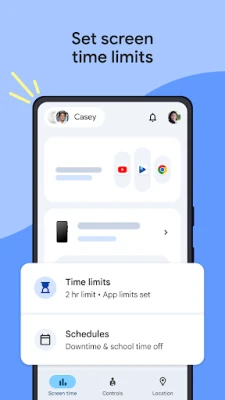
- Screen‑time management – Define daily usage limits, schedule device‑free periods for school or bedtime, and receive alerts when the limit is reached.
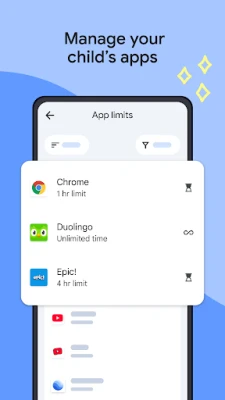
- App oversight – Approve or block apps before they are installed, set individual time allowances for specific apps, and grant unlimited access to educational or frequently used apps.
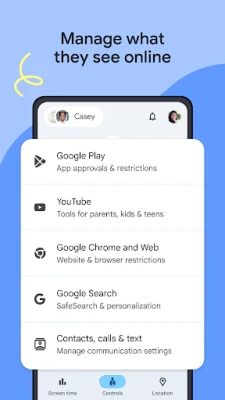
- Content filters – Adjust settings for Google services such as Chrome, Play Store, YouTube and Search to restrict mature content and require parental approval for new downloads.
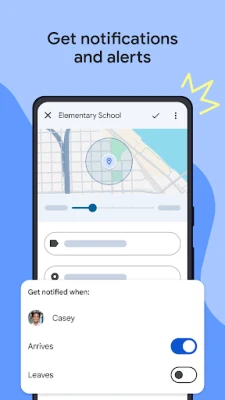
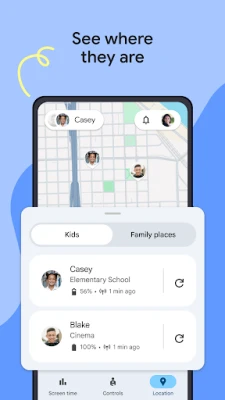
- Location tracking – View the child’s device location on a map, set geofences and receive notifications when the device enters or leaves a defined area.
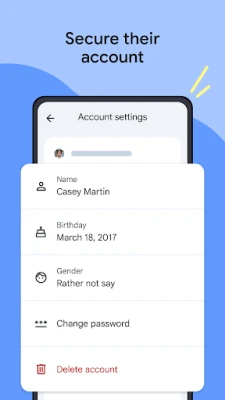
- Account controls – Manage the child’s Google Account, reset passwords, edit personal information and, if necessary, remove the account.
- Device alerts – Get notifications about battery level, device lock status and the ability to ring the device remotely.
How it works
After installing Family Link on both the parent’s and the child’s Android devices, the parent creates a supervised Google Account for the child. The child’s device is linked to the parent’s account, which then enables the parental controls listed above. Settings are adjusted from the parent’s device, and changes are applied to the child’s device in real time.
Practical uses
- Establish consistent screen‑time rules for homework, chores and leisure.
- Prevent accidental exposure to inappropriate web content.
- Ensure that educational apps receive priority while limiting gaming or social media usage.
- Stay informed about a child’s whereabouts during school trips or after‑school activities.
Installation information
Google Family Link is available through the Google Play Store. Search for the package name com.google.android.apps.kids.familylink or the app name, then tap “Install.” The app requires a Google Account for both parent and child; the child’s account must be set up as a supervised account during the onboarding process.
Compatibility
The app works on Android devices that support Google Play Services and meet the minimum system requirements for the Play Store. Specific version requirements can be checked within the Play Store listing.
Things to know before installing
- The child’s device must be running a compatible version of Android; older devices may not support all features.
- Some features, such as location tracking, depend on the device’s GPS and network connectivity.
- Parental controls are limited to devices that run the Family Link app; they do not extend to non‑Android devices.
Who may find it useful?
Parents of children aged 6‑13 who use Android smartphones or tablets will benefit most from Family Link. The app also helps guardians who want to introduce structured digital habits while retaining the ability to intervene when necessary.
Frequently asked questions
Can I set different limits for weekdays and weekends?
Yes. The app allows you to create separate schedules for school days and non‑school days, giving flexibility for weekend activities.
What happens when the screen‑time limit is reached?
The device will display a notification and can be set to lock automatically, preventing further use until the next day or until the parent overrides the limit.
Is the child able to change the settings?
Settings are controlled from the parent’s device. The child can view the limits but cannot modify them without parental approval.
Do I need an internet connection for the app to work?
Most features, such as setting limits and viewing usage reports, require an internet connection to sync between devices. Location tracking also depends on network access.
Rate the App
User Reviews











Popular Apps









 Games
Games Entertainment
 Communication
 E-mail
 Security
 Tools
Tools Media
Media Internet
 Finance
 Design
 Education
 IT Tools
 Travel & Local
 Android
 Windows
 Linux
Linux