


Latest Version
Latest
June 24, 2026
AFTVnews.com
Tools
Android
490
Free
com.esaba.downloader
Report a Problem
More About Downloader by AFTVnews – Simple File Downloader
What is Downloader by AFTVnews?
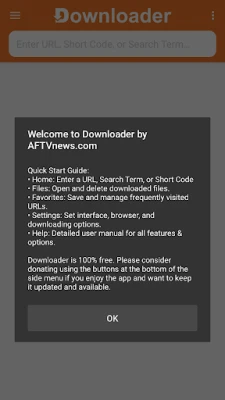
Downloader by AFTVnews is a lightweight Android application designed to bring simple file‑downloading capabilities to Android TV, Google TV, smartphones and tablets. Instead of relying on a browser, users can paste a direct URL, browse a website within the app, or enter a short code to retrieve APKs, PDFs, images, or any downloadable file.
Key features
- URL and code entry – Paste any web address or use short codes to start a download instantly.
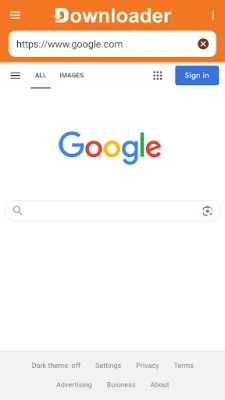
- Built‑in web view – Browse sites without leaving the app, making it easy to locate the exact file you need.
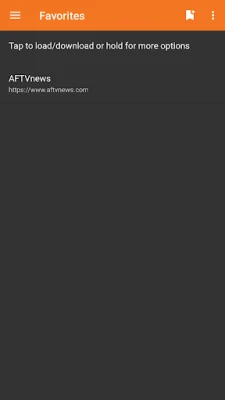
- Favorites list – Save frequently used URLs for one‑tap access.
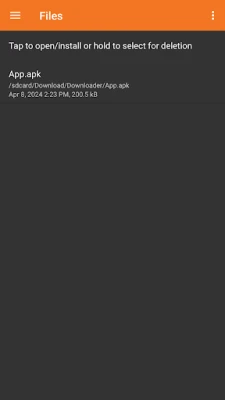
- Integrated file manager – Browse, open, install (for APKs) or delete downloaded files from a single interface.
- Background downloading – Continue other tasks while files download in the background.
- Free and ad‑supported – No subscription required.
How the application works
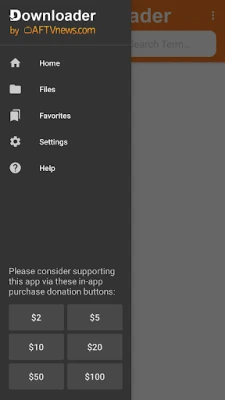
When you launch Downloader, the main screen presents three entry points: a URL field, a short‑code field, and a “Browse” button. Enter a direct link to an APK or any other file and tap “Download”. The app validates the link, shows a progress bar, and stores the file in its private download folder. If you choose “Browse”, a minimal web browser opens inside the app, allowing you to navigate to a page that hosts the file. Once you locate the download button, the app intercepts the request and starts the download automatically.
All completed files appear in the “Files” tab. Tapping an APK launches the Android package installer, while other file types open with the appropriate system viewer. The “Favorites” tab lets you add URLs with a long‑press, making repeat downloads a single tap away.
Installation information
Downloader is distributed as a standard Android APK. To install, enable “Install unknown apps” for the source (browser, file manager, etc.) and open the downloaded APK. The app requests storage permission to save files and, on Android TV, the “Manage external storage” permission for broader file access. After granting permissions, the app appears in your app drawer and is ready to use.
Compatibility
The app runs on Android 6.0 (Marshmallow) and newer. It is optimized for Android TV and Google TV, offering remote‑control navigation, but it works equally well on smartphones and tablets. Devices with at least 100 MB of free storage are recommended to avoid download interruptions.
Things to know before installing
- Downloader does not host any files; it only fetches what you specify.
- Because the app can install APKs, only download files from trusted sources.
- Background downloads may consume mobile data; consider using Wi‑Fi for large files.
- The built‑in browser is basic; for complex sites you may prefer a full‑featured browser.
Frequently asked questions
Q: Can I download multiple files at once?
A: The current version supports one active download. Additional files must be queued manually.
Q: Does the app work on Android Auto?
A: No, the interface is designed for TV and handheld devices only.
Q: Are there any ads?
A: Yes, a small, non‑intrusive banner appears at the bottom of the screen.
Q: How do I delete a file?
A: Open the “Files” tab, long‑press the item, and choose “Delete”.
Rate the App
User Reviews










Popular Apps










 Games
Games Entertainment
 Communication
 E-mail
 Security
 Tools
Tools Media
Media Internet
 Finance
 Design
 Education
 Android Firmwares
 Travel & Local
 Android
 Windows
 Linux
Linux