Latest Version
Latest
August 15, 2026
Google LLC
Tools
Android
189
Free
com.google.chromeremotedesktop
Report a Problem
More About Chrome Remote Desktop – Access Your PC from Android
What is Chrome Remote Desktop?
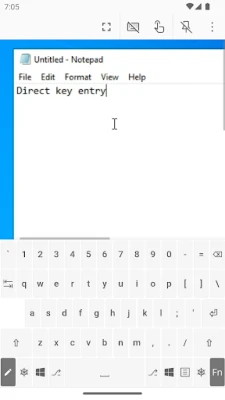
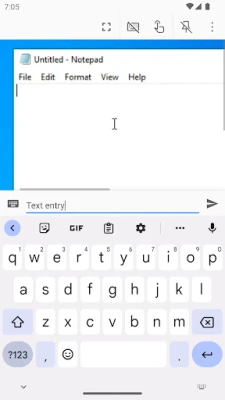
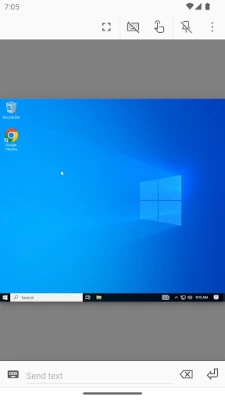
Chrome Remote Desktop is a free tool from Google that lets you connect to a computer that you have previously set up for remote access. Once the connection is established, the Android device acts as a thin client, displaying the remote desktop and forwarding touch input, keyboard commands, and mouse clicks back to the host computer.
Main features
- Secure connections – All traffic is encrypted end‑to‑end, protecting your data while you work remotely.
- Cross‑platform support – Connect to Windows, macOS, or Linux machines that have the Chrome Remote Desktop host installed.
- Touch‑friendly interface – The app adapts mouse movements to finger gestures, making navigation intuitive on a phone or tablet.
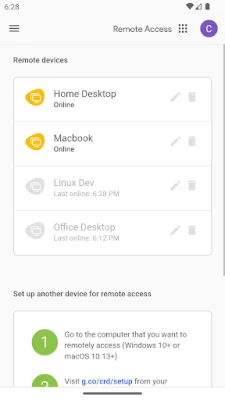
- Multiple computers – Manage a list of all your configured machines and switch between them with a single tap.
How it works
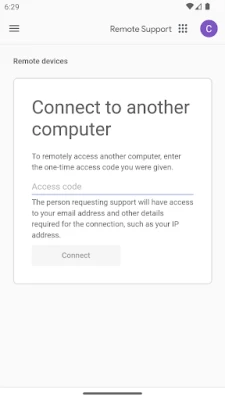
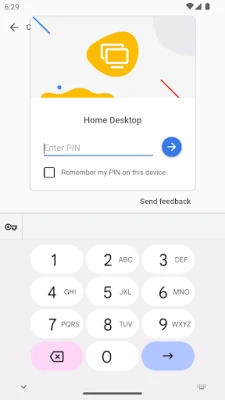
First, you install the Chrome Remote Desktop extension on the Chrome browser of each computer you want to access. During that setup you create a PIN that will be required for every remote session. After the host is ready, you install the Android client from the Play Store, sign in with the same Google account, and you’ll see the computers that are online. Tapping a computer prompts you for the PIN, then the remote session starts.
Practical uses
- Retrieve files or documents while you’re away from the office.
- Run desktop‑only applications, such as specialized design or development tools, from a mobile device.
- Provide quick technical support to a colleague by taking control of their workstation.
- Monitor a home PC for updates, downloads, or media playback without needing a separate monitor.
Installation information
Search for “Chrome Remote Desktop” in the Google Play Store and install the app. The download size is modest, and the installation process follows the standard Android flow. After installing, open the app and sign in with your Google account. If you have not yet set up a host computer, the app will guide you to the Chrome Web Store where you can add the required extension.
Compatibility
The Android client runs on devices that support the Google Play Services framework. It works with phones and tablets running recent versions of Android. The remote host must have the Chrome browser installed and the Chrome Remote Desktop extension added from the Chrome Web Store.
Things to know before installing
- You need a Google account that is used on both the Android device and the computers you wish to control.
- Each remote session requires the PIN you set during host configuration; keep it secure.
- Performance depends on the quality of the internet connection on both ends. A stable Wi‑Fi or cellular connection will provide the smoothest experience.
Who may find it useful?
Anyone who needs occasional access to a desktop environment while on the move can benefit from Chrome Remote Desktop. This includes business professionals, students, IT support staff, and hobbyists who run resource‑intensive software on a home PC but want to monitor or adjust it from a mobile device.
Frequently asked questions
Do I need to keep the Chrome browser open on the host computer?
Yes, the Chrome Remote Desktop host runs as a background service linked to the Chrome browser, so the browser must remain installed and logged in.
Can I transfer files through the remote session?
The Android client does not include a built‑in file transfer feature, but you can copy and paste text, and you can use cloud storage services on the remote computer to move files.
Is the connection truly encrypted?
All remote sessions are encrypted using industry‑standard TLS, ensuring that data transmitted between your Android device and the host computer cannot be intercepted.
What happens if the remote computer is asleep?
The host must be awake and connected to the internet. You can configure power settings on the computer to prevent it from sleeping when you expect to need remote access.
Rate the App
User Reviews




Popular Apps










 Games
Games Entertainment
 Communication
 E-mail
 Security
 Tools
Tools Media
Media Internet
 Finance
 Design
 Education
 Android Firmwares
 Travel & Local
 Android
 Windows
 Linux
Linux