

Latest Version
Latest
September 04, 2026
Enstone
Tools
Android
3
Free
enstone.smsfw.app
Report a Problem
More About Auto forward SMS to PC / Phone – Enstone
What is Auto forward SMS to PC / Phone?
Auto forward SMS to PC / Phone is a free Android utility created by Enstone that lets you automatically send received text messages and multimedia messages to another destination of your choice. The app runs in the background, detects incoming SMS/MMS and forwards them according to the rules you set.
Main capabilities
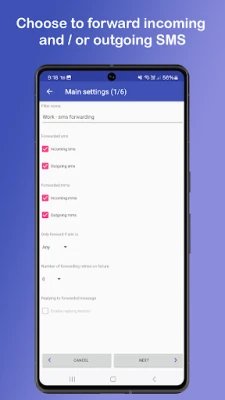
- Phone‑to‑phone forwarding: Send a copy of each incoming message to another mobile number via standard SMS/MMS.
- Phone‑to‑PC forwarding: Forward messages to a computer by email, allowing you to read them on a desktop or laptop.
- Web integration: Deliver messages to a web server using an HTTP request in JSON format.
- Telegram support: Directly push messages to a Telegram chat.
- Two‑way communication: Reply to a forwarded message from the destination device, and the reply is sent back through the original phone.
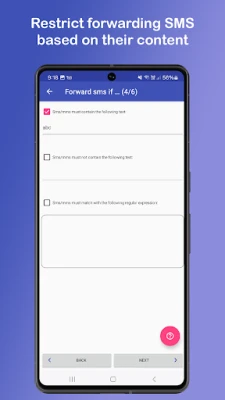
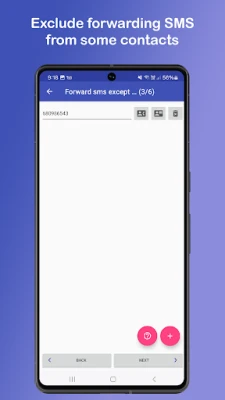
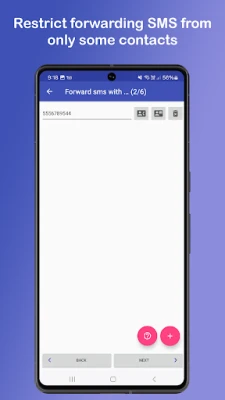
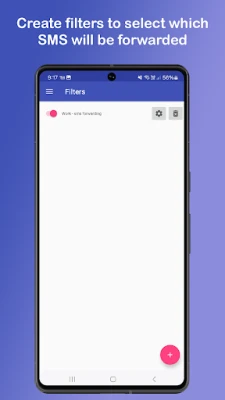
- Custom filtering: Define filters based on sender address or message content so only selected messages are forwarded.
- Dual‑SIM awareness: Choose which SIM card the app should use when sending forwarded messages.
How it works
When a new SMS or MMS arrives, the app checks the message against any filters you have created. If the message matches, the app formats the data and sends it to the selected target – another phone number, an email address, a web endpoint, or a Telegram chat. The process is handled locally on the device, so no external service is required to trigger the forwarding.
Practical uses
- Work continuity: Keep work‑related texts synchronized with your office computer or a secondary device.
- Multi‑device households: Share important notifications with family members who may not have the primary phone.
- Remote access: Receive verification codes or alerts on a laptop when you are away from your phone.
- Automation enthusiasts: Use the HTTP/JSON output to integrate SMS data into custom scripts or home‑automation platforms.
Installation notes
The app is available through the standard Android package installer. After installing, grant the required permissions for reading SMS messages and sending them. The initial setup involves defining at least one forwarding rule – for example, an email address for PC forwarding – and selecting the preferred SIM card if your device has more than one.
Things to consider before installing
- Forwarding messages may incur carrier charges for each outgoing SMS/MMS, depending on your plan.
- The app does not store messages on external servers; all processing happens on the device.
- Make sure the destination address (email, phone number, or web URL) is correctly entered to avoid missed forwards.
Who might benefit?
Anyone who needs their text messages accessible on a device other than their primary phone will find this tool useful. This includes business professionals, remote workers, families sharing important alerts, and developers who want to route SMS data into other systems.
Frequently asked questions
Is the app free?
Yes, Auto forward SMS to PC / Phone is offered at no cost.
Will the app display ads?
No, the application is ad‑free.
Can I forward messages to multiple destinations at once?
You can create separate rules for different destinations, allowing the same incoming message to be sent to more than one target.
Do I need an internet connection for forwarding?
Forwarding to email, web servers, or Telegram requires an active internet connection. Phone‑to‑phone forwarding works with the cellular network alone.
Is my data private?
The app processes messages locally and only transmits them to the destinations you specify. It does not collect or share your messages beyond the forwarding actions you configure.
Rate the App
User Reviews












Popular Apps









 Games
Games Entertainment
 Communication
 E-mail
 Security
 Tools
Tools Media
Media Internet
 Finance
 Design
 Education
 IT Tools
 Travel & Local
 Android
 Windows
 Linux
Linux