Latest Version
Latest
August 16, 2026
TeamViewer
BUSINESS
Android
67
Free
com.teamviewer.teamviewer.market.mobile
Report a Problem
More About TeamViewer Remote Control – Access Your Computer from Android
What is TeamViewer Remote Control?
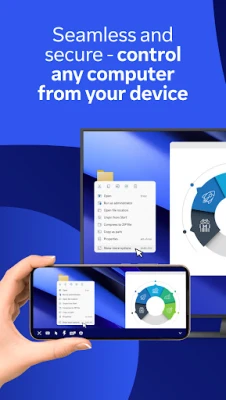
TeamViewer Remote Control is a free Android app that lets you operate a desktop computer from your phone or tablet. By establishing an encrypted connection, you can see the remote screen, move the cursor, type, and interact with applications just as if you were sitting in front of the machine.
Main capabilities
- Full remote desktop access – Control Windows, macOS and Linux systems from Android.
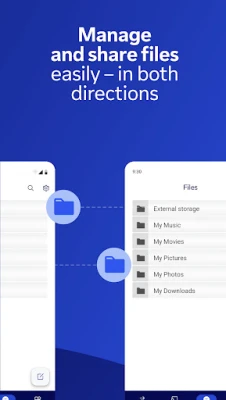
- Bidirectional file transfer – Drag files to and from the remote computer without leaving the app.
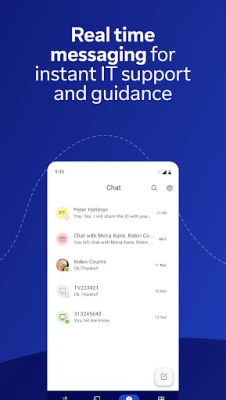
- Live chat – Exchange text messages with the remote user during a session.
- Screen sharing with audio – View the remote screen in high quality and hear system sound.
- Multi‑monitor support – Switch between multiple displays on the remote PC.
How it works
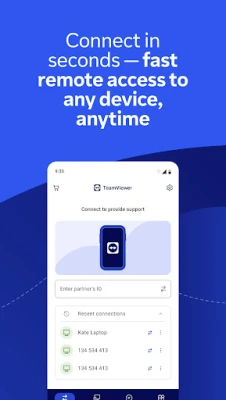
To start a session you need the TeamViewer ID or a session code displayed on the computer you want to control. After entering the code in the Android app, a secure tunnel is created using 256‑bit AES encryption. The connection works through firewalls and NAT routers, so no additional network configuration is required.
Practical uses
- On‑the‑go productivity – Open documents, run scripts or check emails from a laptop while traveling.
- Technical support – Provide immediate assistance by viewing a user’s screen and taking control when needed.
- Server administration – Manage unattended machines, virtual servers or kiosks without being physically present.
Installation and setup
Download the app from the Google Play Store, install it on your Android device, and launch it. You will be prompted to grant permissions for screen overlay and, optionally, camera access for QR‑code scanning. No additional software is required on the remote computer if it already has TeamViewer installed; otherwise the companion QuickSupport app can be used.
Compatibility notes
The app runs on Android smartphones and tablets that meet the minimum system requirements defined by Google Play. It can connect to computers running recent versions of Windows, macOS and major Linux distributions. Because the connection is cloud‑mediated, the exact Android version is not critical as long as the device can run Google Play services.
Who might benefit?
IT professionals who need to troubleshoot devices remotely, freelancers who work from multiple locations, and anyone who wants to access personal files or applications while away from their desk will find TeamViewer Remote Control useful.
Things to keep in mind
- Both devices must have an active internet connection.
- The free version is intended for personal, non‑commercial use; business features require a separate subscription.
- Performance depends on network speed; a stable Wi‑Fi or cellular connection provides the smoothest experience.
Frequently asked questions
Is the connection secure?
Yes. All traffic is encrypted with 256‑bit AES, and session IDs are generated uniquely for each connection.
Can I control an Android device from another Android device?
TeamViewer offers a separate solution for controlling Android‑to‑Android scenarios; the Remote Control app focuses on desktop access.
Do I need to install anything on the remote computer?
If the computer already runs TeamViewer, no extra steps are needed. For unattended access, the QuickSupport app can be installed on the target machine.
Rate the App
User Reviews







Popular Apps










 Games
Games Entertainment
 Communication
 E-mail
 Security
 Tools
Tools Media
Media Internet
 Finance
 Design
 Education
 Android Firmwares
 Travel & Local
 Android
 Windows
 Linux
Linux