

Latest Version
Latest
August 16, 2026
Microsoft Corporation
BUSINESS
Android
70
Free
com.azure.authenticator
Report a Problem
More About Microsoft Authenticator – Secure Sign‑In Made Simple
What is Microsoft Authenticator?
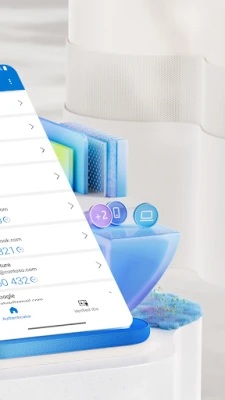
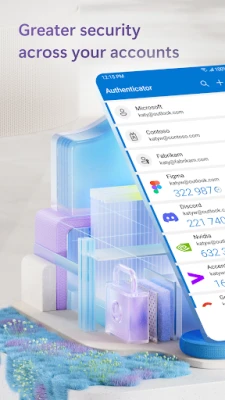
Microsoft Authenticator is a free Android app from Microsoft Corporation that helps you verify your identity when you sign in to online services. By adding a second factor—such as a push notification, a time‑based code, or a biometric check—the app makes it harder for unauthorized users to access your accounts.
Main capabilities
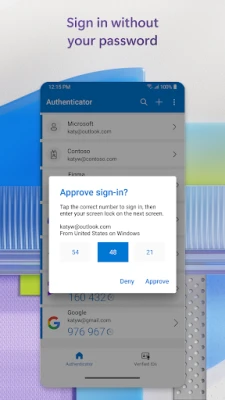
- Two‑step verification: After entering your password, you receive a prompt on your phone to approve or deny the sign‑in attempt.
- Time‑based one‑time passwords (TOTP): The app generates six‑digit codes that refresh every 30 seconds, usable even without an internet connection.
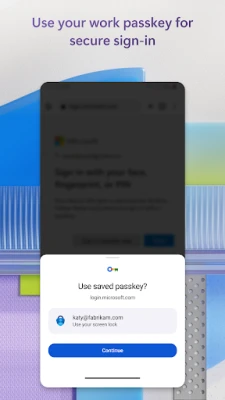
- Password‑less sign‑in: For supported Microsoft accounts, you can approve a login request with a fingerprint, face scan, or PIN instead of typing a password.
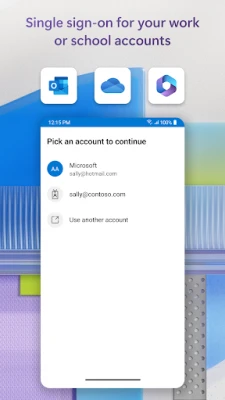
- Multiple account support: Add personal Microsoft accounts, work or school accounts, and a range of non‑Microsoft services that support standard TOTP.
- Device registration for organizations: Enterprises can require the app for accessing corporate resources, and the app can store certificates for cert‑based authentication.
How it works
When you enable multi‑factor authentication (MFA) on a service, the service sends a challenge to the Microsoft Authenticator app. You can respond in one of three ways:
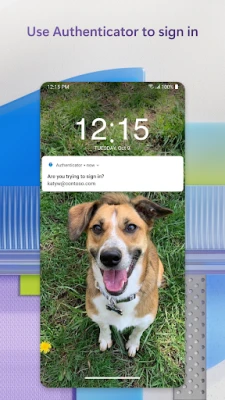
- Push approval: Tap “Approve” on a notification that appears on your phone.
- Enter a code: Open the app, read the six‑digit code, and type it into the sign‑in screen.
- Biometric or PIN verification: For password‑less logins, confirm your identity using the device’s built‑in biometric sensors or a PIN.
Because the TOTP codes are generated locally, they work without data or Wi‑Fi, and the short lifespan of each code reduces the risk of reuse.
Practical uses
- Protect personal email, cloud storage, and social media accounts.
- Secure access to corporate email, SharePoint, Teams, and other Microsoft 365 services.
- Enable password‑less login for a smoother experience on Windows, Xbox, and Azure portals.
- Manage multiple accounts from a single, organized interface.
Installation and setup
Download Microsoft Authenticator from the Google Play Store, install it, and follow the on‑screen prompts to add an account. For Microsoft accounts, you can scan a QR code or sign in directly from the app. Adding non‑Microsoft services typically involves entering a secret key provided by the service’s security settings.
Things to consider before installing
- Make sure your device has a lock screen (PIN, pattern, password, fingerprint, or face) to protect the app’s data.
- Back up your accounts if you plan to switch devices; the app offers cloud backup through your Microsoft account.
- Some corporate environments may require additional configuration steps, such as enrolling the device in mobile device management (MDM).
Who benefits most?
Anyone who wants an extra layer of security for online accounts will find Microsoft Authenticator useful. It is especially valuable for:
- Individuals managing several personal accounts across different services.
- Employees of organizations that enforce MFA for Office 365, Azure, or other Microsoft services.
- Students and educators accessing school resources protected by two‑factor authentication.
Frequently asked questions
Is the app free?
Yes, Microsoft Authenticator is offered at no cost.
Do I need an internet connection to get codes?
No. The time‑based codes are generated locally and work offline.
Can I use the app for non‑Microsoft accounts?
Yes. Any service that supports standard TOTP can be added.
What happens if I lose my phone?
Recover access by using backup codes provided by the service, or restore your accounts from the cloud backup if you set it up beforehand.
Rate the App
User Reviews














Popular Apps










 Games
Games Entertainment
 Communication
 E-mail
 Security
 Tools
Tools Media
Media Internet
 Finance
 Design
 Education
 Android Firmwares
 Travel & Local
 Android
 Windows
 Linux
Linux