

Latest Version
Latest
September 03, 2026
Microsoft Corporation
BUSINESS
Android
5
Free
com.microsoft.windowsintune.companyportal
Report a Problem
More About Intune Company Portal – Secure Access to Corporate Resources
What is Intune Company Portal?
Intune Company Portal is Microsoft’s client app that lets employees access corporate applications, data, and services on Android devices. It works as the bridge between a device and an organization’s Microsoft Intune environment, enabling secure enrollment and ongoing management.
Main Features
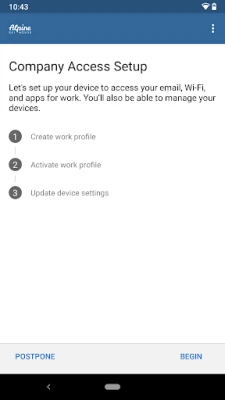
- Device enrollment – Register your Android phone or tablet with your company’s Intune tenant.
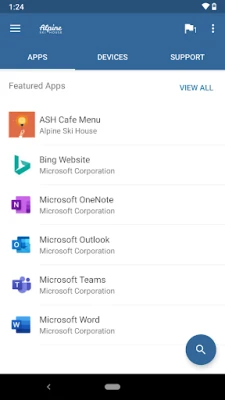
- App catalog – Browse, install, and update apps that your IT department has made available.
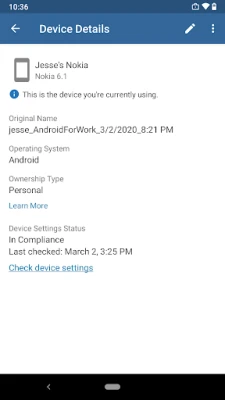
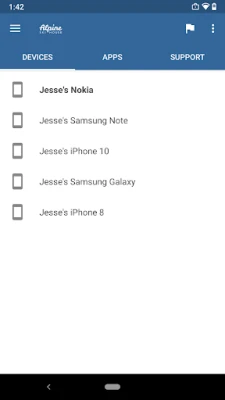
- Device inventory – View a list of all devices you have enrolled and see their compliance status.
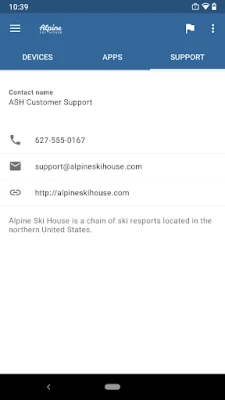
- IT contact information – Quickly find the support details your organization provides for mobile issues.
- Password management – Change your work account password directly from the app.
- Remote actions – If needed, your IT admin can remotely wipe corporate data or unenroll a device.
How It Works
After your IT administrator creates an Intune account for you, you sign in with your work credentials. The app then establishes a trusted relationship with the Intune service, applying any policies your organization has defined (such as password requirements, encryption, or app restrictions). Once enrolled, the app presents a personalized catalog of approved software and provides a dashboard for device health and compliance.
Practical Uses
- Access internal business apps without needing separate VPN connections.
- Ensure that corporate data remains protected even on personal devices (BYOD scenarios).
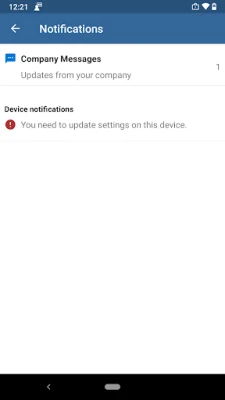
- Receive notifications when a device falls out of compliance, helping you stay aligned with security guidelines.
- Facilitate remote troubleshooting by allowing IT to see device status and, if authorized, perform a wipe.
Installation Information
Download Intune Company Portal from the Google Play Store and install it like any other app. During the first launch you will be prompted to sign in with your corporate account and to grant the permissions required for device management. Follow the on‑screen steps to complete enrollment.
Things to Know Before Installing
- The app requires a work or school account that is managed by Microsoft Intune.
- Some features may be limited or unavailable in certain regions, depending on your organization’s configuration.
- Enrollment may trigger security policies such as mandatory passwords, device encryption, or restrictions on certain apps.
- If you need to remove the app, you must first unenroll the device through the app’s settings; otherwise the device remains managed.
Who May Find It Useful?
Employees who need to use corporate applications on personal Android devices, IT administrators who manage mobile device compliance, and organizations adopting a BYOD strategy will benefit from Intune Company Portal.
Frequently Asked Questions
Do I need a Microsoft account to use the app?
Yes, you must sign in with the work or school account that your organization has provisioned in Intune.
Can I use the app on a tablet?
Yes, the app is designed for both phones and tablets running Android.
What happens if I uninstall the app without unenrolling?
The device may remain enrolled in Intune, and your organization could still enforce policies remotely. Always unenroll first.
Is personal data affected by enrollment?
Intune policies typically target corporate data and apps. Personal apps and files remain separate unless your organization applies broader restrictions.
Rate the App
User Reviews














Popular Apps









 Games
Games Entertainment
 Communication
 E-mail
 Security
 Tools
Tools Media
Media Internet
 Finance
 Design
 Education
 IT Tools
 Travel & Local
 Android
 Windows
 Linux
Linux