

Latest Version
Latest
September 01, 2026
Cisco Systems, Inc.
BUSINESS
Android
6
Free
com.cisco.anyconnect.vpn.android.avf
Report a Problem
More About Cisco Secure Client – AnyConnect VPN for Android
What is Cisco Secure Client?
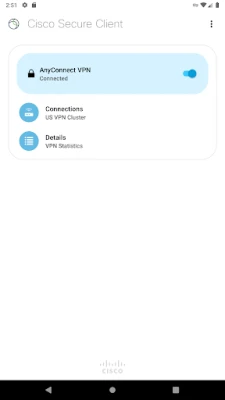
Cisco Secure Client – formerly known as AnyConnect – is Cisco’s VPN application for Android. It creates an encrypted tunnel between a mobile device and a corporate network, allowing users to reach internal resources such as email, intranet sites, virtual desktops, and other business‑critical apps while away from the office.
Main capabilities
- Encrypted connectivity – Uses industry‑standard IPsec or SSL protocols to protect data in transit.
- Persistent session – Keeps the VPN connection active across network changes, so users stay connected when switching from Wi‑Fi to cellular.
- Integration with Cisco security services – Can work with Cisco Umbrella for DNS‑layer protection when the appropriate license is present.
How it works
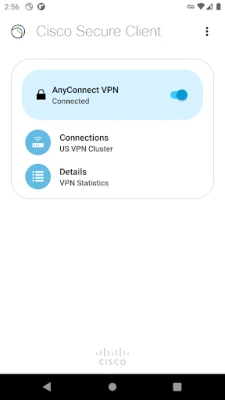
After installation, the app is configured with a VPN profile supplied by the organization’s Cisco Adaptive Security Appliance (ASA) or compatible Cisco firewall. When the user launches the client and authenticates, the app establishes a secure tunnel to the ASA, which then routes traffic to internal resources according to the organization’s policies.
Practical uses
The client is useful for employees who need reliable access to corporate systems from a smartphone or tablet. Typical scenarios include:
- Checking corporate email securely while traveling.
- Accessing a virtual desktop or remote applications hosted on the corporate network.
- Using internal web portals that are not exposed to the public internet.
Installation information
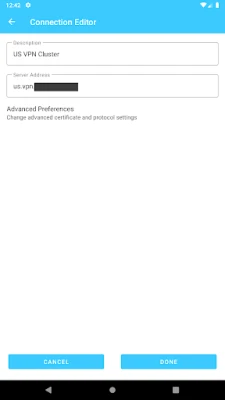
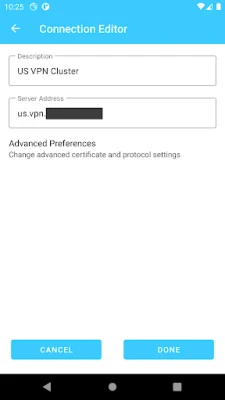
The app is distributed as a free download from the Google Play Store. Installation follows the standard Android process: tap Install, grant the requested VPN permission, and then open the app to enter the connection details provided by your IT department.
Compatibility
Cisco Secure Client requires Android 4.4 (KitKat) or newer. The exact list of supported devices depends on the Android version running on the device. Organizations may impose additional requirements, such as a minimum ASA firmware level (8.0(4) or later) for the VPN server.
Things to know before installing
- Licensing – Use of the client is tied to a Cisco VPN license (Plus, Apex, or VPN‑Only). The app itself is free, but connection to a corporate network requires a valid license on the Cisco equipment.
- Feature limitations on Android – Certain advanced features, such as split DNS or local LAN exceptions, may not be available on older Android releases (e.g., 7.x/8.x) due to OS constraints.
- Device policies – Some organizations enforce additional security settings (device encryption, password policies) before allowing VPN access.
Who may find it useful?
Any employee, contractor, or partner who needs secure, on‑the‑go access to a Cisco‑protected corporate network will benefit from Cisco Secure Client. It is especially relevant for users of Android smartphones and tablets who require a reliable VPN without needing a separate laptop.
Frequently asked questions
Do I need a Cisco account to use the app?
No. The app itself does not require a Cisco user account. Connection credentials are supplied by your organization’s IT team.
Can I use the client on a rooted device?
Rooted devices may be blocked by corporate policies. Check with your IT department before attempting to use the client on a rooted phone.
What should I do if the VPN does not connect?
Verify that the device has an active internet connection, that the VPN profile information is correct, and that the ASA server is reachable. If the problem persists, contact your IT support with any error messages displayed.
Rate the App
User Reviews















Popular Apps









 Games
Games Entertainment
 Communication
 E-mail
 Security
 Tools
Tools Media
Media Internet
 Finance
 Design
 Education
 IT Tools
 Travel & Local
 Android
 Windows
 Linux
Linux