
Latest Version
Latest
August 16, 2026
AnyDesk Software GmbH
BUSINESS
Android
66
Free
com.anydesk.anydeskandroid
Report a Problem
More About AnyDesk Remote Desktop – Connect to PCs and Mobile Devices
What is AnyDesk Remote Desktop?
AnyDesk Remote Desktop is a free Android application that lets you establish a direct connection to another computer or mobile device. Once connected, you can view the remote screen, control the mouse and keyboard, and interact with applications as if you were sitting in front of the remote machine.
Main capabilities
- Live screen sharing – See the remote desktop in real time with smooth visual performance.
- Touch and pointer control – Use your finger or a stylus to move the remote cursor, click, and type.
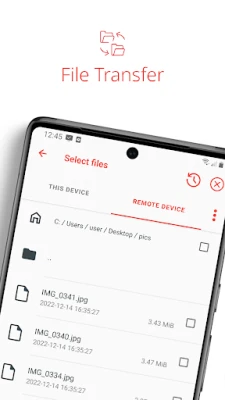
- File transfer – Move files between your Android device and the remote system using a built‑in transfer tool.
- Session recording (optional) – Capture a session for later review, if the remote side enables it.
How it works
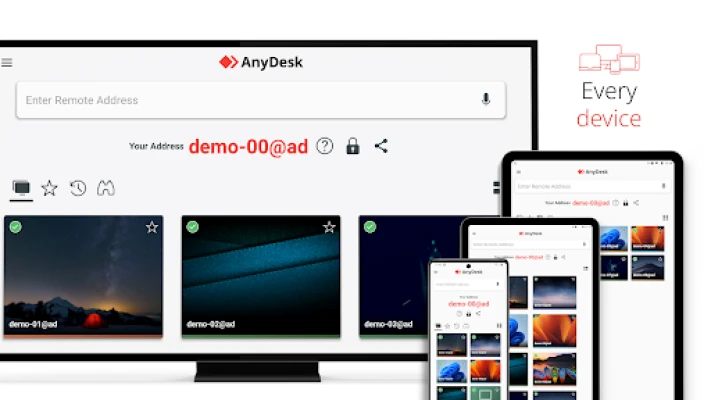
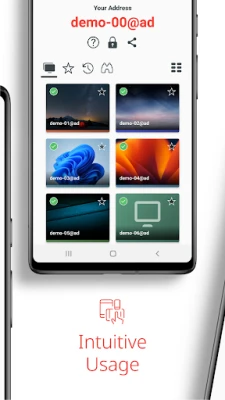
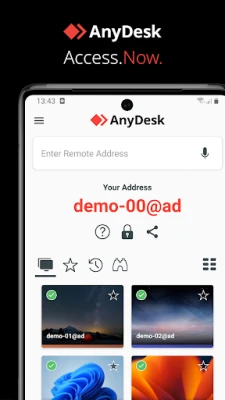
When you launch AnyDesk, the app displays a unique identifier for your device. To start a session, you enter the identifier shown on the remote computer or device. The remote side receives a connection request that must be accepted before any interaction begins. The connection is routed through AnyDesk’s network, which optimises data flow to keep latency low.
Practical uses
- Technical support – Help friends, family, or colleagues troubleshoot issues without being on site.
- Remote work – Access work computers, run specialised software, or retrieve documents while traveling.
- Education – Teachers can demonstrate software or guide students through assignments from a distance.
Installation and setup
Download AnyDesk from the Google Play Store, install it, and open the app. The first screen shows your device’s AnyDesk‑ID. To connect, you need the ID of the target computer, which can be found in the AnyDesk client installed on that machine. After entering the ID, wait for the remote user to approve the request. No additional configuration is required for a basic connection.
Compatibility considerations
AnyDesk runs on Android devices that meet the minimum system requirements for the Play Store version. It can connect to Windows, macOS, Linux, iOS, and other Android devices that have the AnyDesk client installed. Network conditions affect performance; a stable Wi‑Fi or cellular connection yields the best experience.
Things to keep in mind
- Both devices must have the AnyDesk app installed and be online.
- The remote user must explicitly accept each connection request.
- Performance depends on internet speed and the capabilities of the remote hardware.
Who might benefit?
Anyone who needs occasional remote access—IT professionals, freelancers, students, or family members helping each other with device issues—will find AnyDesk useful. Because the app is free for personal use, it offers a low‑cost way to stay connected to important files and applications.
Frequently asked questions
Is any personal data stored on the device?
AnyDesk does not retain session data on your Android device unless you choose to save recordings or transferred files.
Do I need a special account?
No separate account is required; the connection is based on the device IDs shown in the app.
Can I use AnyDesk on a metered mobile connection?
Yes, but be aware that remote sessions can consume significant data, especially when displaying high‑resolution screens.
Rate the App
User Reviews











Popular Apps










 Games
Games Entertainment
 Communication
 E-mail
 Security
 Tools
Tools Media
Media Internet
 Finance
 Design
 Education
 Android Firmwares
 Travel & Local
 Android
 Windows
 Linux
Linux