
Latest Version
Latest
August 15, 2026
MightyText: SMS Texting w/ PC - SMS Messaging
Communication
Android
220
Free
com.texty.sms
Report a Problem
More About Send SMS/MMS Messages from PC – MightyText
What is Send SMS/MMS Messages from PC?
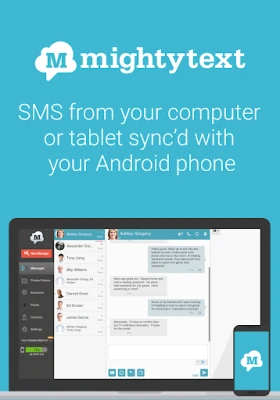
Send SMS/MMS Messages from PC is a free Android app developed by MightyText that lets you access your phone’s text messaging from a web browser or a desktop client. Once the app is installed on your Android device, your messages, MMS media, and call logs are mirrored to your computer, allowing you to type, read, and manage conversations without picking up your phone.
Main features
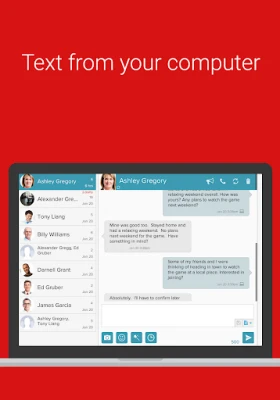
- Two‑way SMS/MMS sync – Send new messages and receive incoming texts on your PC in real time.
- Full‑keyboard typing – Use your computer’s keyboard for faster, more comfortable composition.
- Message search and archive – Find older conversations quickly and keep a searchable record on your desktop.
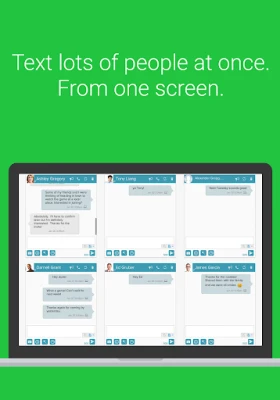
- Multi‑recipient support – Add several contacts to a single message without switching screens.
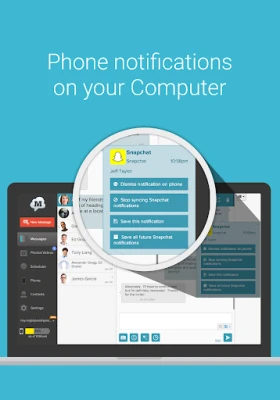
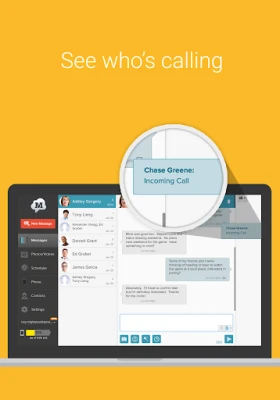
- Desktop notifications – Get a pop‑up alert whenever a new SMS or MMS arrives.
How it works
After installing the app on your Android phone, you sign in with a Google account. The app creates a secure link between your device and the MightyText web portal. When you open the portal in a browser (Chrome, Firefox, Edge, etc.) you see a familiar messaging interface that mirrors the content on your phone. All actions you take on the computer—sending, deleting, or marking messages—are reflected back to the phone instantly.
Practical uses
- Reply to work‑related texts while typing a report.
- Send photos or videos stored on your phone without transferring them first.
- Keep a backup of important conversations on your PC for easy reference.
- Stay connected when your phone battery is low but the computer is still powered.
Installation information
1. Open Google Play on your Android device and search for “Send SMS/MMS Messages from PC”.
2. Install the app (free).
3. Launch the app and follow the on‑screen prompts to sign in and grant the necessary permissions for SMS, MMS and notification access.
4. Open a supported web browser on your computer and go to the MightyText web portal (the URL is provided within the app).
5. Sign in with the same Google account to start syncing.
Things to know before installing
- The app requires access to your SMS and MMS messages to function correctly.
- An active internet connection is needed on both the phone and the computer for real‑time sync.
- All data is transmitted over encrypted channels, but you should review the privacy policy in the app for details.
Who may find it useful?
Anyone who spends significant time at a desk—professionals handling customer inquiries, students managing group chats, or anyone who simply prefers a full keyboard for texting—will benefit from this tool. It is also handy for users who need to keep a local copy of their messages for record‑keeping.
Frequently asked questions
Is the app compatible with all Android versions?
The app works on devices that support the standard Android messaging APIs. Specific version requirements are listed in the Play Store listing.
Can I send MMS with images from my PC?
Yes. When you attach a photo or video in the web interface, the app forwards the media to your phone for delivery as an MMS.
Do I need to keep the app open on my phone?
The app runs in the background after the initial setup, so you do not need to keep it foregrounded for syncing to continue.
Rate the App
User Reviews













Popular Apps










 Games
Games Entertainment
 Communication
 E-mail
 Security
 Tools
Tools Media
Media Internet
 Finance
 Design
 Education
 Android Firmwares
 Travel & Local
 Android
 Windows
 Linux
Linux