

Latest Version
September 13, 2026
Quantn App
Communication
Android
6
Free
com.messages.messenger.sms.text.message.chat.app.home
Report a Problem
More About Messages SMS – Home Message
What is Messages SMS – Home Message?
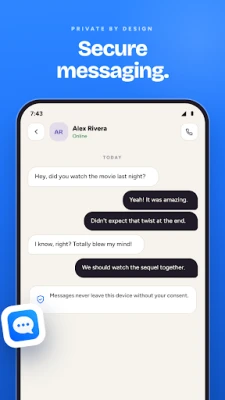
Messages SMS – Home Message is a lightweight messaging client for Android devices. It focuses on the core functions of SMS and MMS, offering a clean interface for sending and receiving text messages, photos, emojis and other media without the extra clutter of social‑network integrations.
Main features
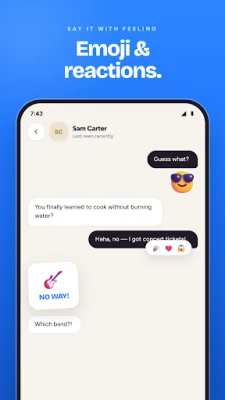
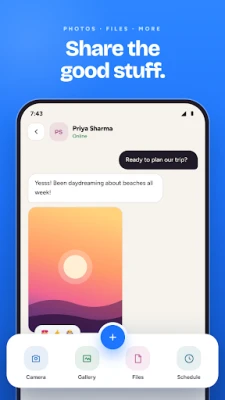
- Standard SMS/MMS support – Send and receive plain‑text messages as well as multimedia messages with photos, videos and emojis.
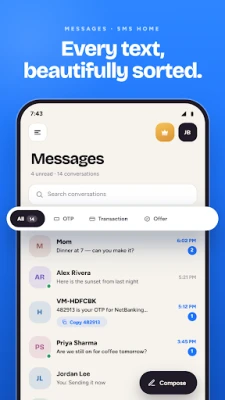
- Inbox organization – Conversations are grouped by contact, and you can sort or filter chats to find older messages quickly.
- Swipe gestures – Simple left‑ or right‑swipe actions let you archive, delete or mark a conversation as read with a single motion.
- Spam filtering – The app includes a basic spam blocker that can hide messages from numbers you mark as unwanted.
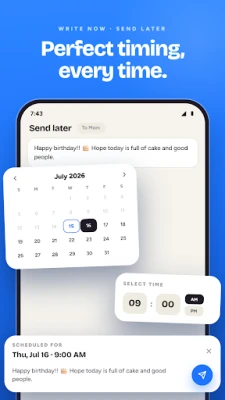
- Scheduled sending – Choose a future date and time for a message to be sent automatically, useful for reminders or birthday wishes.
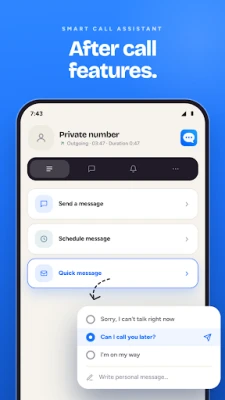
- After‑call quick reply – When you finish a phone call, a prompt appears that lets you send a follow‑up text without opening the full app.
- Custom notifications – Set different tones, vibration patterns or preview options for individual contacts.
- Backup and restore – Export your SMS history to a file and later restore it on the same or a new device.
How it works
After installing the app, it registers as the default SMS handler if you choose to do so. All incoming messages appear in the main conversation list. Tapping a thread opens the chat view where you can type a new message, attach media from the gallery, or insert an emoji using the built‑in picker. Swipe gestures are configurable in the settings menu, allowing you to tailor the left and right actions to your workflow.
Practical uses
- Keeping personal and work texts separate by using custom notification profiles.
- Scheduling reminders for appointments or deadlines without needing a separate calendar app.
- Reducing spam clutter by quickly blocking unknown numbers.
- Backing up important conversations before switching to a new phone.
Installation information
The app is distributed as a free download from the Google Play Store. Installation follows the standard Android process: tap “Install,” grant the requested permissions for sending and receiving SMS/MMS, and optionally set the app as the default messaging client.
Things to know before installing
- The app requires the standard Android permissions for SMS and storage access to send messages and attach media.
- Backup files are stored locally; you should copy them to external storage or cloud services if you need an off‑device copy.
- Spam filtering works on a simple blocklist; it does not include advanced machine‑learning detection.
Who may find it useful?
Anyone who prefers a dedicated SMS app without the distractions of social‑media integrations will benefit. It is especially handy for users who need basic organization tools, scheduled messaging, or a quick way to reply after a phone call.
Frequently asked questions
Do I need an internet connection to send messages?
No. SMS and MMS are sent through your carrier’s cellular network, so an active data connection is not required.
Can I use the app alongside another messaging app?
Yes. You can keep another messenger for chat services while using Messages SMS – Home Message solely for carrier‑based texting.
How are backups restored?
From the app’s settings, choose “Restore backup,” locate the previously exported file, and confirm. The restored messages will appear in the appropriate conversation threads.
Rate the App
User Reviews












Popular Apps









 Games
Games Entertainment
 Communication
 E-mail
 Security
 Tools
Tools Media
Media Internet
 Finance
 Design
 Education
 IT Tools
 Travel & Local
 Android
 Windows
 Linux
Linux