

Latest Version
August 13, 2026
Google LLC
Communication
Android
296
Free
com.google.android.contacts
Report a Problem
More About Contacts – Google’s native contact manager
What is Contacts?
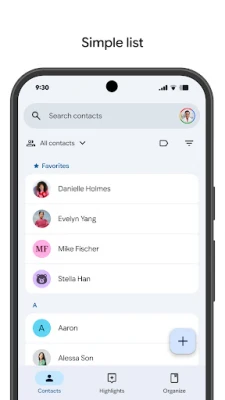
Contacts is Google’s native address‑book application for Android devices. It stores the names, phone numbers, email addresses and other details you share with people you know, and keeps that information linked to your Google Account.
Main capabilities
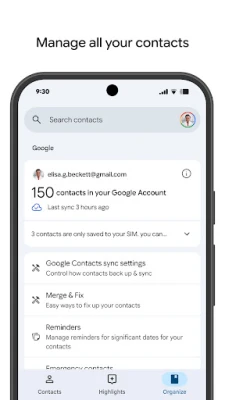
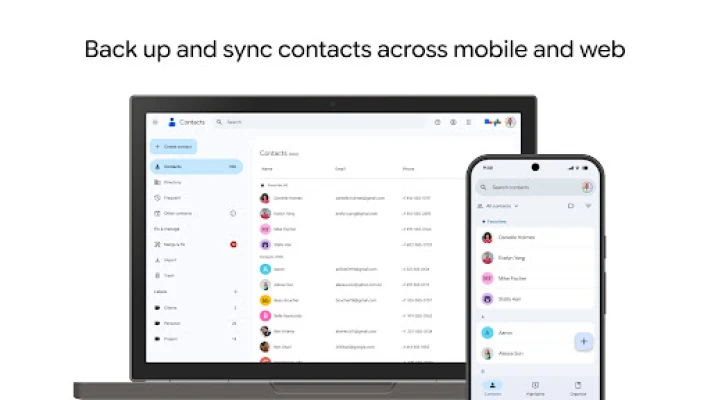
- Cross‑device sync – When you sign in with the same Google Account on multiple phones or tablets, any change you make in the app is reflected everywhere.
- Backup to the cloud – All entries are saved to your Google Account, providing a safety net against loss of data.
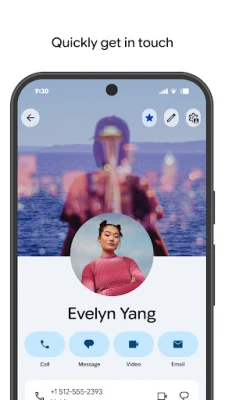
- Easy editing – Add new contacts, update phone numbers, attach photos, and edit notes directly from the app.
- Duplicate handling – The app can suggest merges when it detects two entries that appear to represent the same person.
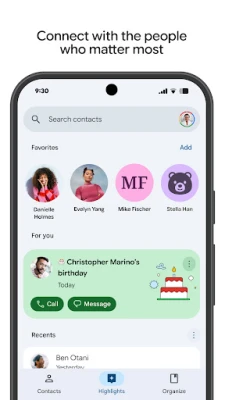
- Special date reminders – Birthdays and anniversaries stored in a contact’s details can appear in your calendar and generate notifications.
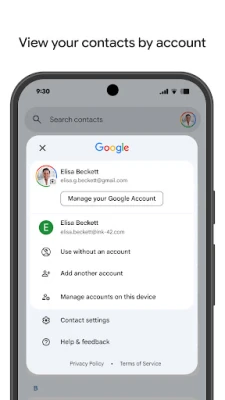
- Account grouping – If you use multiple accounts (personal, work, etc.), contacts can be filtered by the source account.
How it works
When you add or modify a contact, the app writes the data to your Google Account. The service then propagates the change to any other Android device where you have enabled sync for the same account. If you delete a contact, it moves to a temporary trash area for 30 days, allowing you to restore it if needed.
Practical uses
- Keep a single, up‑to‑date phonebook that follows you when you switch phones.
- Recover lost numbers after a device reset or accidental deletion.
- Stay aware of birthdays and anniversaries without opening a separate calendar app.
- Separate personal and professional contacts while still accessing them from one interface.
Installation and setup
The app comes pre‑installed on most Android devices that ship with Google Play services. If it is missing, you can install it from the Play Store by searching for “Contacts” and selecting the version published by Google LLC. After installation, open the app, sign in with your Google Account, and enable sync in the device’s Settings → Accounts → Google.
Things to consider before installing
- Sync requires an active internet connection and a Google Account.
- Contacts stored only on the device (without a Google Account) will not be backed up automatically.
- Privacy‑related settings, such as sharing contact data with other Google services, can be adjusted in the app’s Settings menu.
Who benefits most?
Anyone who relies on a phonebook that stays consistent across multiple Android devices will find this app useful. It is especially handy for users who already use Google services like Gmail, Calendar, or Drive, because the contact data integrates seamlessly with those platforms.
Frequently asked questions
Can I use Contacts without a Google Account?
You can create local contacts, but they will remain on the device only and will not be backed up or synced.
How long are deleted contacts kept?
Deleted entries stay in the Trash for up to 30 days, after which they are permanently removed.
Is there a way to import contacts from another source?
Yes. The app provides an import option that can read vCard files or pull contacts from other accounts linked to the device.
Rate the App
User Reviews












Popular Apps










 Games
Games Entertainment
 Communication
 E-mail
 Security
 Tools
Tools Media
Media Internet
 Finance
 Design
 Education
 Android Firmwares
 Travel & Local
 Android
 Windows
 Linux
Linux