

Latest Version
Latest
May 16, 2026
Bytedance Pte. Ltd.
Media
Android
867
Free
com.lemon.lvoverseas
Report a Problem
More About CapCut – Easy Video Editor for Android
What is CapCut – Video Editor?
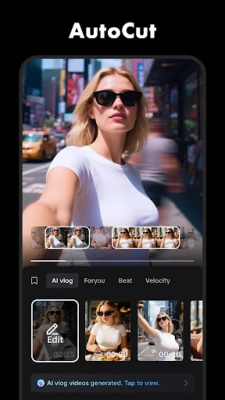
CapCut is a free Android app that combines basic trimming tools with advanced editing capabilities. It is designed for casual creators who want quick social‑media clips and for power users who need precise control over video timing, color, and effects.
Key features
- Basic editing: Trim, split, merge, and adjust playback speed from 0.1x to 100x.
- Advanced tools: Keyframe animation, optical‑flow slow‑motion, chroma‑key background removal, and video stabilization.
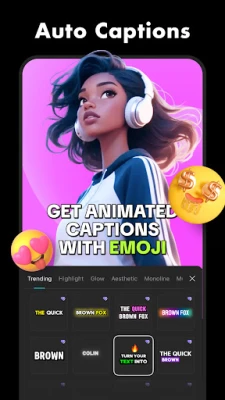
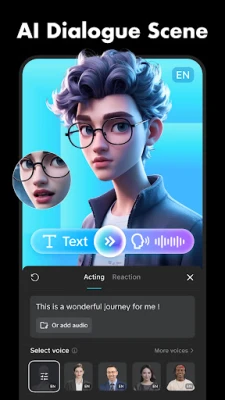
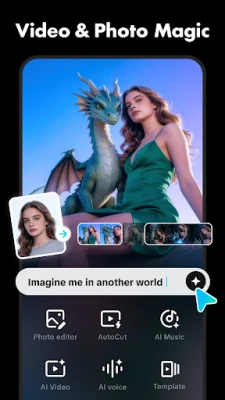
- AI‑assisted utilities: Auto‑generated captions, multi‑language text‑to‑speech, and automatic background removal.
- Creative assets: Hundreds of filters, transitions, motion‑tracking stickers, and a library of royalty‑free music and sound effects.
- Export options: Export up to 4K 60 fps with HDR support, choose aspect ratios, and share directly to TikTok, Instagram, YouTube, WhatsApp, or Facebook.
How the application works
After installing CapCut, start a new project and import video clips from your gallery. The multi‑track timeline lets you drag clips, trim edges, and layer audio tracks. Use the speed curve tool to create smooth accelerations or decelerations, and add keyframes to animate position, rotation, or opacity over time.
To add subtitles, enable Auto captions; the app analyses speech and inserts time‑coded text, which you can edit for accuracy. For voice‑overs, select Text‑to‑speech, choose a language and voice style, and the app will generate an audio track that can be placed on the timeline.
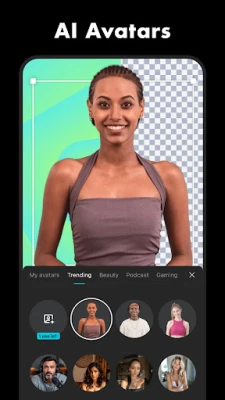
Background removal works via chroma‑key: select a color (commonly green or blue) and the app replaces it with a transparent layer, allowing you to insert a new backdrop or keep only the subject.
Installation information
CapCut is available on the Google Play Store. Search for "CapCut" or use the package name com.lemon.lvoverseas. Tap Install, and the app will download automatically. The initial download size is around 150 MB, but additional assets (filters, music, stickers) are downloaded on demand.
Compatibility
The app requires Android 5.0 (Lollipop) or newer. It runs smoothly on most modern smartphones and tablets, and it supports both ARM and x86 architectures. For best performance with 4K exports, a device with at least 4 GB of RAM and a mid‑range to high‑end processor is recommended.
Things to know before installing
- CapCut stores edited projects locally; you can back them up to Google Drive or other cloud services.
- Some premium stickers and music tracks are free, while others may require in‑app purchase.
- The app requests access to media files, microphone (for voice‑overs), and storage for exporting videos.
- Exporting in 4K consumes more battery and storage; ensure you have sufficient free space.
Frequently asked questions
Q: Can I edit videos longer than 10 minutes?
A: Yes. CapCut imposes no hard limit on video length, though very long projects may affect performance on low‑end devices.
Q: Is there a watermark?
A: The free version does not add a watermark, but some premium assets may display a small branding tag until purchased.
Q: How do I share directly to TikTok?
A: After exporting, use the built‑in share button and select TikTok; the app will open TikTok with the video pre‑loaded for posting.
Q: Does CapCut support subtitles in languages other than English?
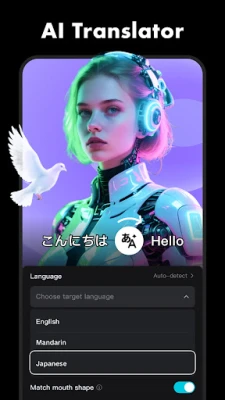
A: Auto‑caption works for many major languages, and you can manually add subtitles in any language using the text editor.
Rate the App
User Reviews















Popular Apps










 Games
Games Entertainment
 Communication
 E-mail
 Security
 Tools
Tools Media
Media Internet
 Finance
 Design
 Education
 Android Firmwares
 Travel & Local
 Android
 Windows
 Linux
Linux